
Enabling Profile Pictures
Last updated: December 5, 2025
As a team owner or admin, you can give every team member an extra Profile Picture (PFP) version of each headshot. A PFP is simply an additional copy of the headshot placed on a clean, solid-color background or a custom branded background.

Enable Additional PFP Headshots
Here’s how to do it:
Go to Settings in the left sidebar
In Make your team's headshot match your brand, upload a custom image or choose a single background color
View & Download PFP Headshots
Here’s how to do it:
Go to Overview in the left sidebar
Click View next to the team member whose headshots you want to access
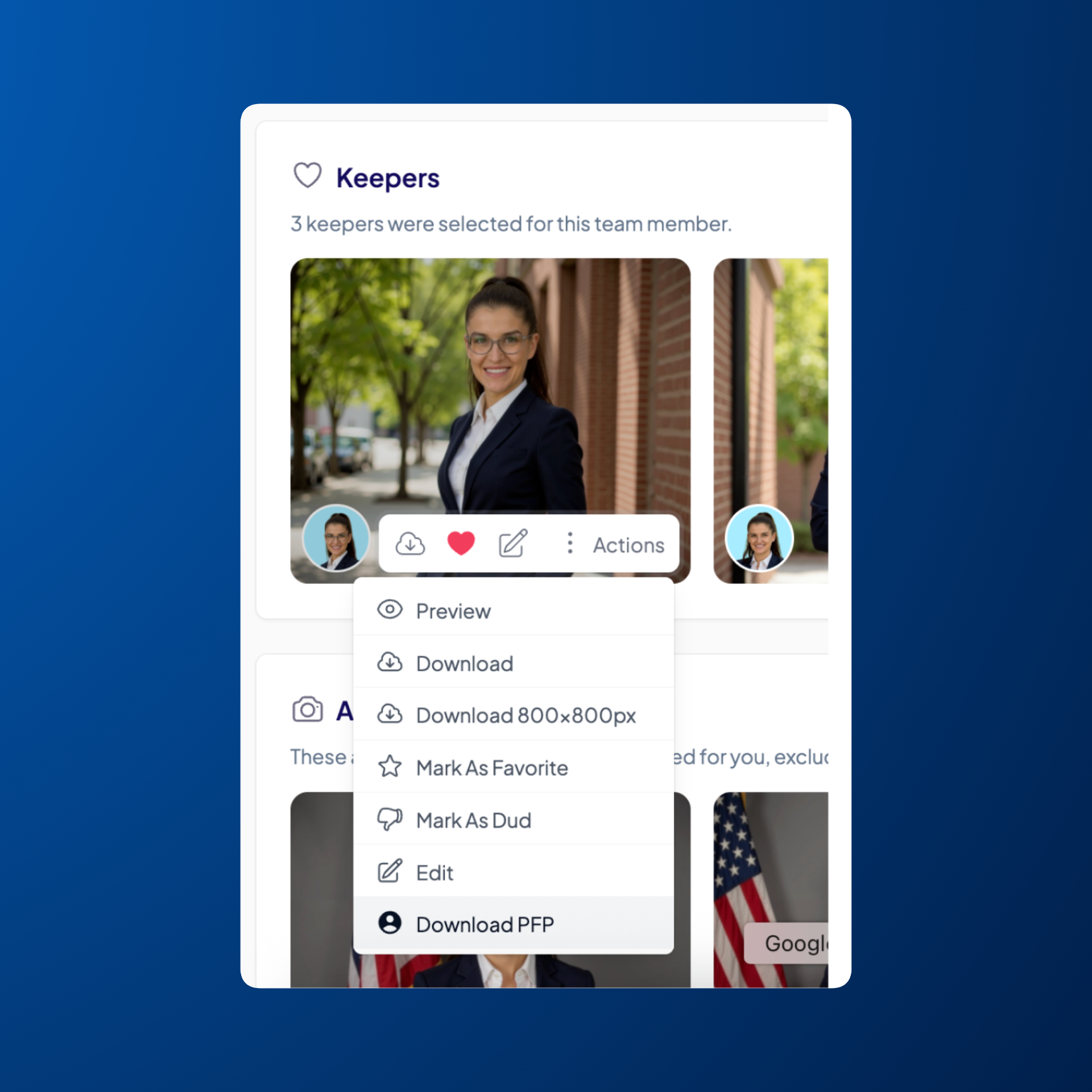
Hover over the headshot with the PFP you'd like to download
Click Actions
Select Download PFP
Was this article helpful?