Manage Team Members
Last updated: December 8, 2025
As the team owner, you can invite and manage all team members of your organization in HeadshotPro.
Inviting team members
You can invite team members in two ways: individually or through a bulk invite.
Inviting Individually
Use individual invites when you want to add specific people one-by-one:
Go to Overview in the side panel
Click on Invite Member+
Select Invite Individually
(Optional) Choose a team
Enter one or more email addresses
Click on Invite Member
Your team members will receive an email from HeadshotPro inviting them to join your team.
Inviting by Bulk
Use a bulk invite link when onboarding many people at once. By doing so, you're creating a single link that you can share, allowing multiple team members to join easily, without having to create an account.
To create a bulk invite link:
Go to Overview in the side panel
Click on Invite Member+
Select Invite by bulk
(Optional) Choose which team to invite
(Optional) Restrict sign-ups to a company email domain
(Optional) Set a usage limit
(Optional) Set an expiration date
Click Create invite link
View, copy and remove all the created bulk invite links under Invite links
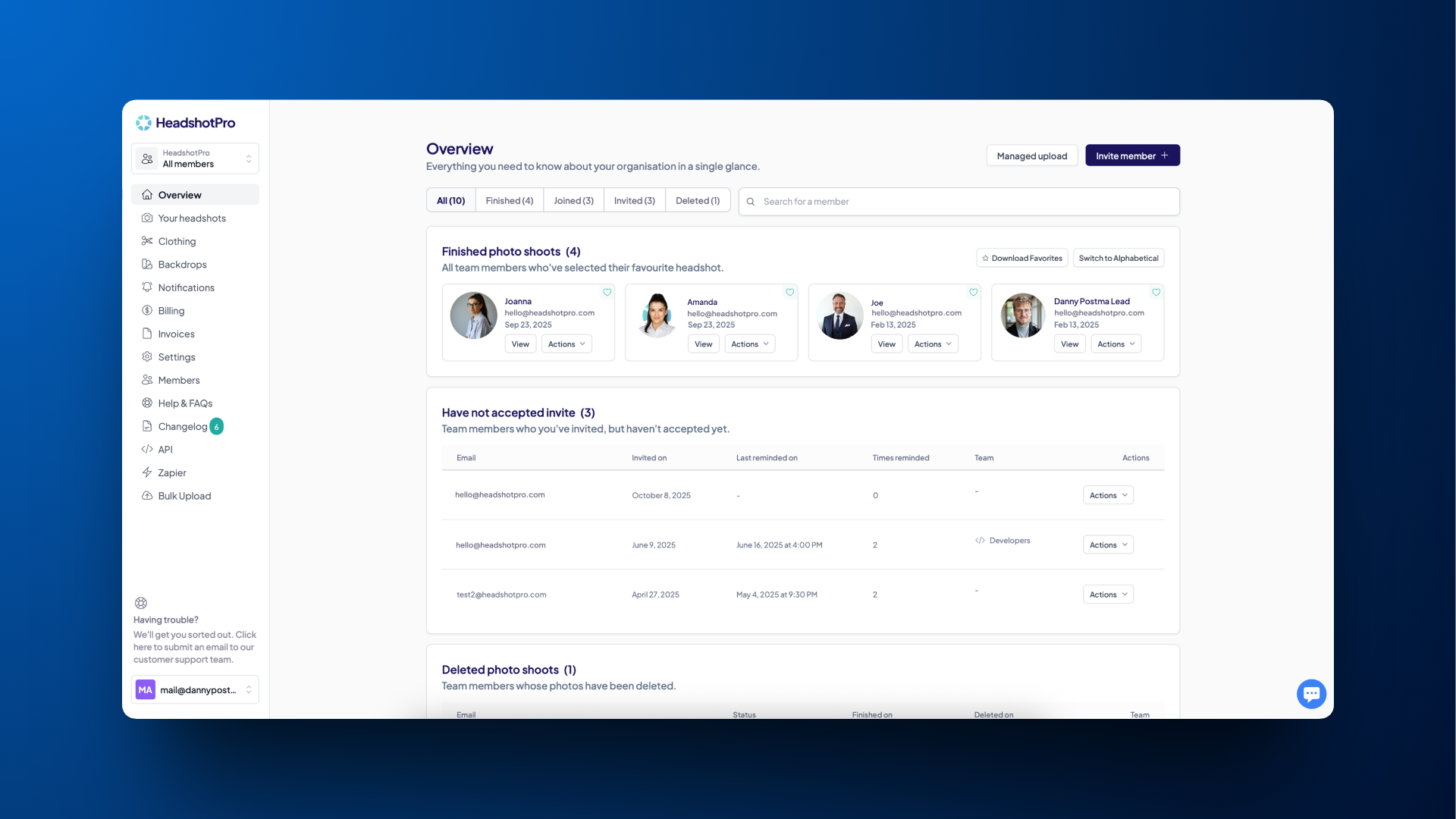
Viewing members
In the Overview section on the side panel, you can see the status of all your team members at a glance. This includes who has accepted invites, who hasn’t accepted yet, who has completed their shoots, and who still has pending shoots.
Sending invite reminders
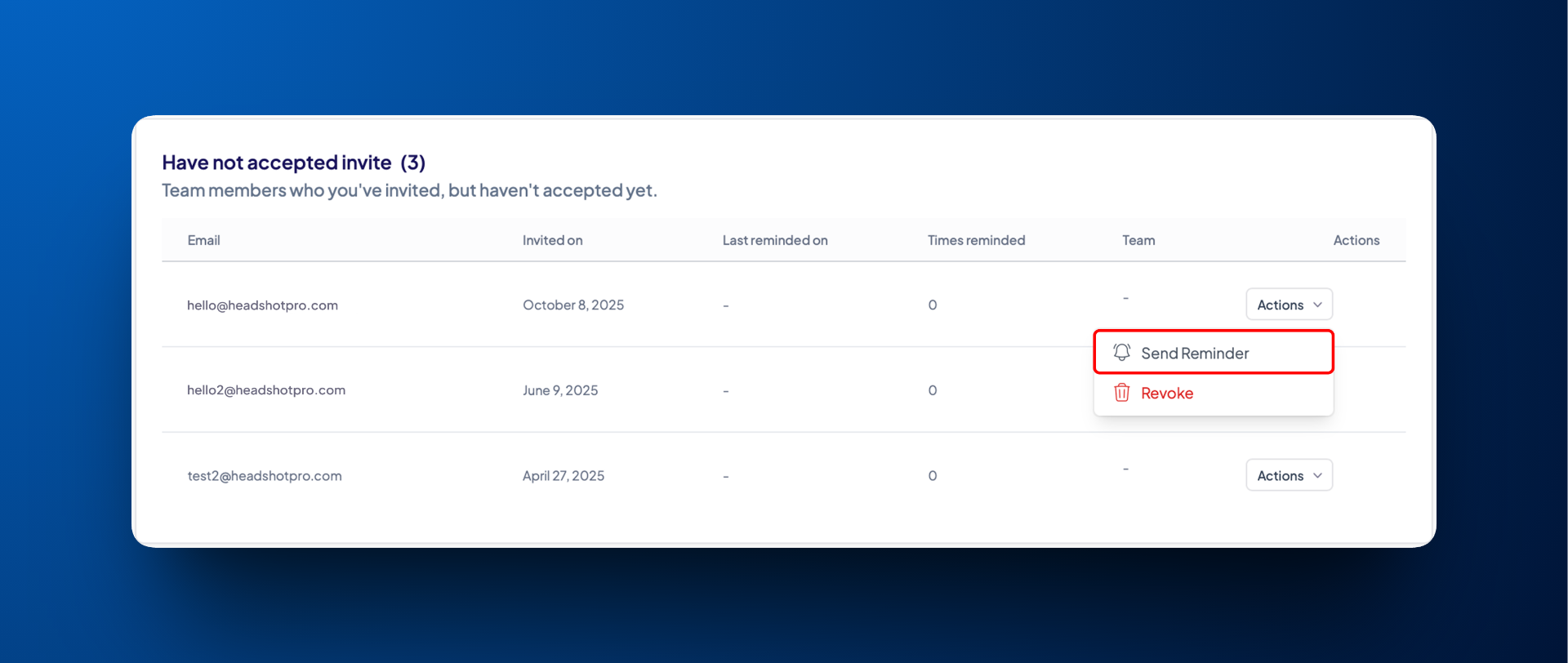
If someone on your team hasn’t accepted their invitation yet, you can send them a reminder. Here’s how:
Go to Overview in the side panel
Locate the team member by either:
Checking the Invites tab OR
Looking under Have not accepted invite
Find their name and click Actions
Select Send Reminder
Revoking an invite
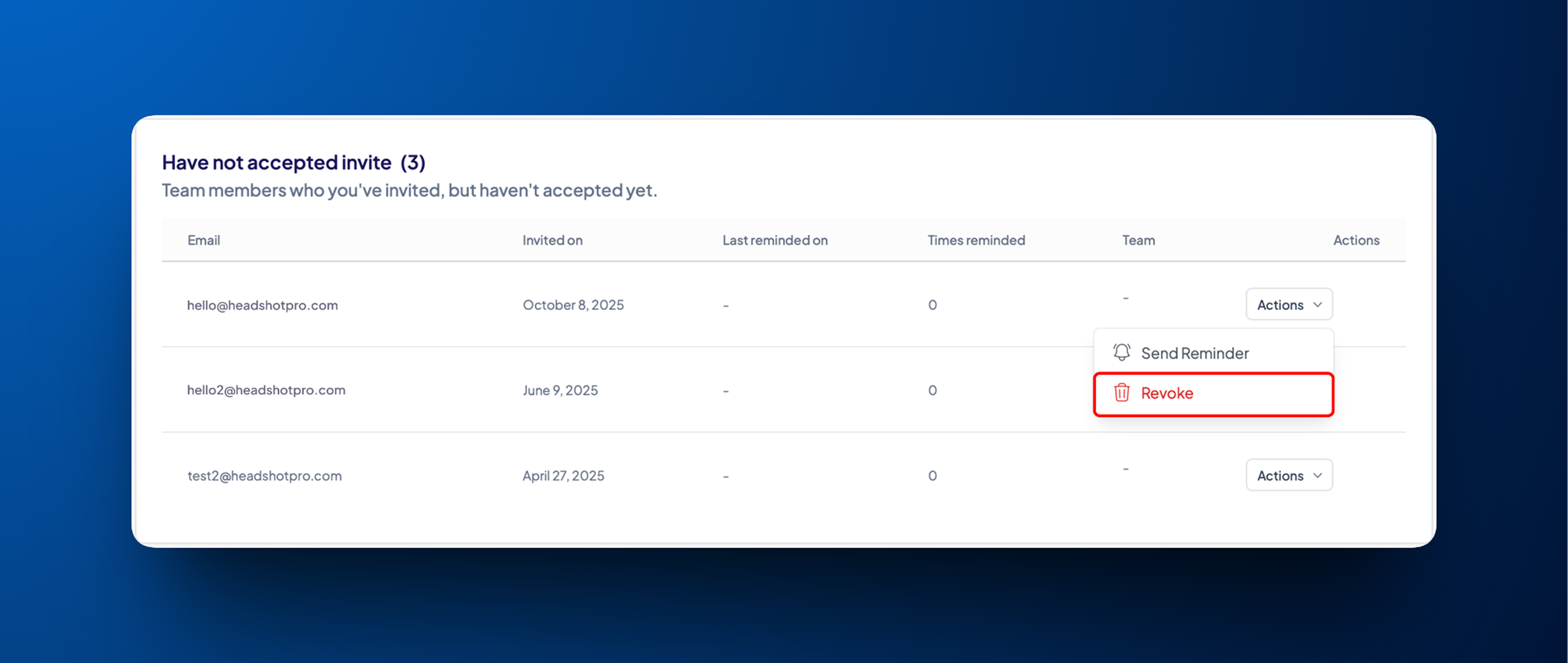
If your team member hasn't accepted their invite yet, you can revoke that pending invite. Here’s how:
Go to Overview in the side panel.
Locate the team member by either:
Checking the Invites tab OR
Looking under Have not accepted invite
Find their name and click Actions
Select Revoke Invite
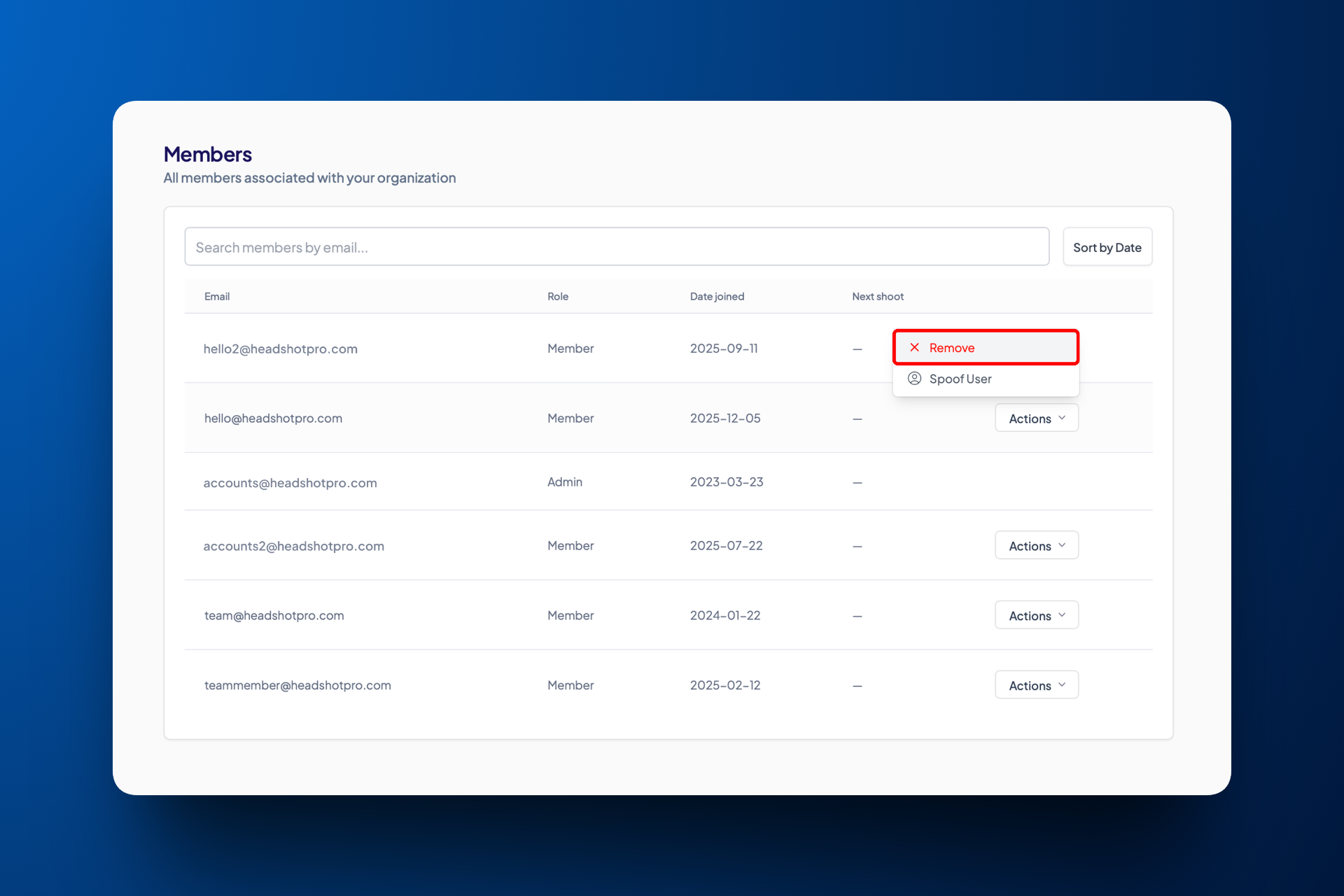
Removing team members
If someone has already accepted and joined your organization, you can remove them from the team:
Go to Members in the side panel
Locate the member
Click Actions next to their name
Select Remove